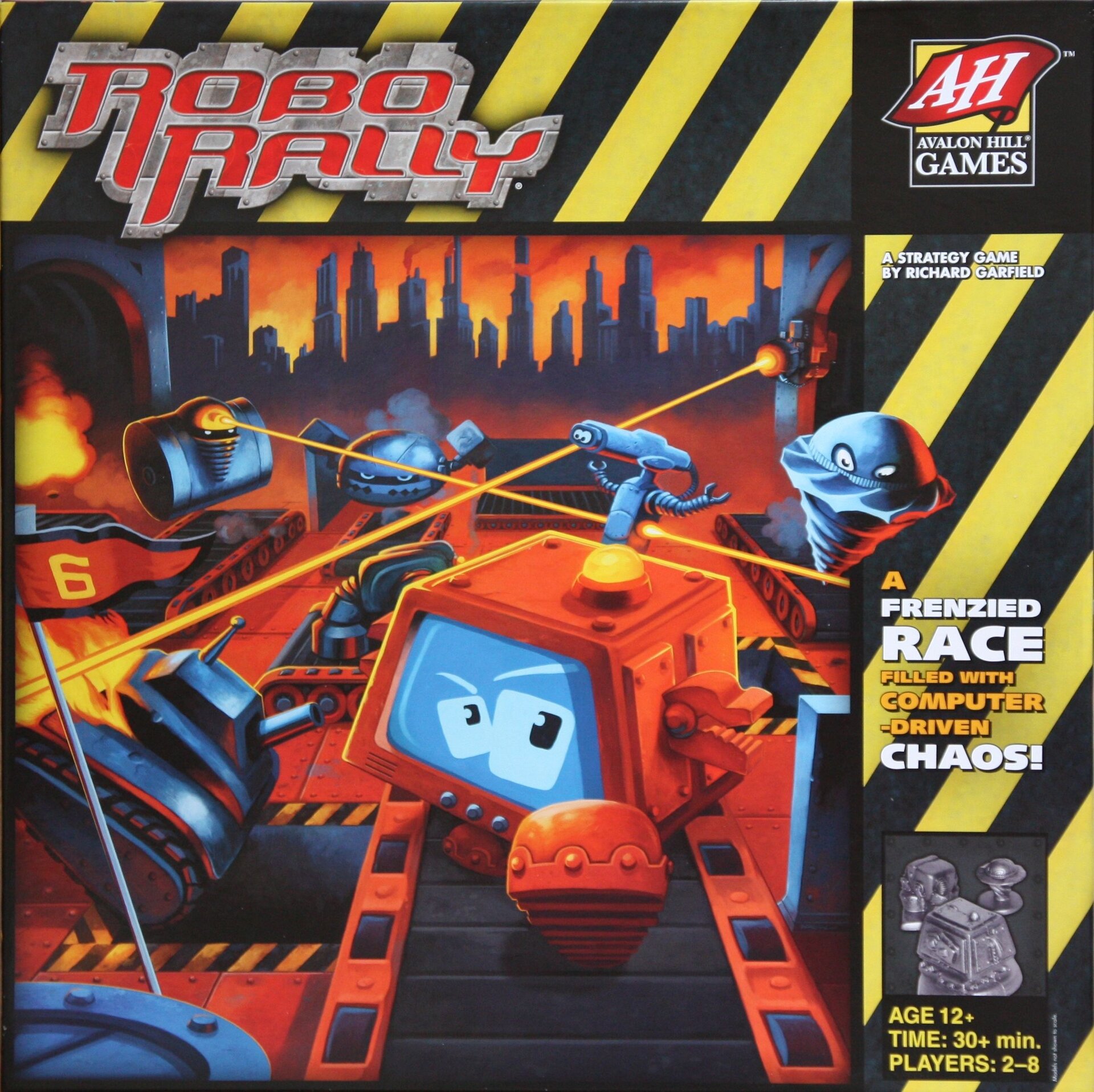
/pic1521348.jpg)
Qual é a sua dúvida sobre RoboRally: Crash and Burn?
Pergunte antes de baixar o manual: o assistente foi treinado neste arquivo e responde na hora, citando a página exata.
Tire dúvidas sobre o jogo
Pergunte qualquer coisa sobre RoboRally: Crash and Burn: regras, preparação, componentes, complexidade, preço ou se combina com seu grupo.
Escreva sua pergunta primeiro. Você criará sua conta grátis para ver a resposta — leva 20 segundos.
Manual completo
Navegue pelo manual ou baixe o PDF originalTexto completo do manual disponível para leitura Abrir texto
Game Idea
Chrash & Burn is an expansion to RoboRally and is only playable with the
basic game. With Crash & Burn it is now possible to play with up to 8
participants. In addition may the Robots be individually moderated by the
use of 26 Option cards. The expansion also includes 4 new Robots with
corresponding Programming Aids and Safety Copies as well as 4 new
Gameplans with new variable Factory Elements.
26 Option cards
Game Components
4 Safety copies
8 Checkpoints
10 Factory Element tiles
4 Robots
4 Programming Aids
24 Damage chits
4 Gameboards marked E, F, G and H
20 Life tokens
RALLY
ÜBERSICHTSTAFEL
CRASH & BURN
Übersicht der Fabrikemente:
ht eines Programmschrittes
als des Programmablaufs:
1) Feuer-Felder: Ein Feld mit einem Feuer-Symbol ist ein Feuer-
Feld. Wenn ein Roboter auf ein Feuer-Feld fährt, erhält er einen
Schaden.
2) Wand: Eine Wand blockiert die Bewegung des Roboters. Ein Roboter
kann nicht durch eine Wand fahren.
2
4 Quick Reference Guides
---
Game Preparations
Gameboards and Checkpoints
A race course is laid out as in the basic game using boards and Checkpoints. In addition
Crash & Burn includes the following new possibilities: The four new Gameboards
(E, F, G and H) may be combined with the original boards in any combination.
Page 12 of the german rules gives examples of possible new race courses.
Crash & Burn includes 8 new Checkpoints as replacements for the those in the basic game.
The new Checkpoints carry an illustration of a Wrench as indication that one Damage
Points may be repaired here.
Program cards
The cards from the basic game are used
Option cards
The Robots and their Laser guns may be improved by the use of Option cards. Some Option cards
may influence the excution of the programs or change the effects of certain Factory Elements. If
Option cards are used in the game must all variants from the basic game be in effect (see the original
rules page 12).
The Option cards are shuffled and placed as a hidden deck next to the gameboards before the game
begins. Used cards will during the game form an open discard pile. The text on the cards has been
shortened for space reasons, but these rules contains a detailed explanation of all the cards.
Option cards doesn't come into the game until a player choose one by placing his Robot on a
Reparation Site with two Wrenches (see also page 11: End of Round).
Damage points
Together with the those from the basic game, the game now contains a pool of 60
Damage Point chits.
Player materials
Each player receives a Robot, a Program Aid, a Safety Copy plus a number of Life Points.
How many each player receives depends on the number of participants and of the size of
the race course. More players, a longer course and more Life Points all contribute to how
long it will take to complete the game.
With 2 to 4 players and 1 to 4 boards receives each player 3 Life Points.
□ Each player receives an additional Life Point with 5 or more players.
□ Each player receives an additional Life Point with 5 or more boards.
For example will each player receive 5 Life Points in a game with five players and six boards.
Quick Reference Guides
The new Reference Guides includes all the most important rules and informations for
types of spaces on the various boards.
Factory Elements as tiles
The expansion contains 2 blue Portals, 2 Crushers, 2 Flamers and 4 Swing Doors.
These tiles may be placed in any empty spaces on the board, and these spaces will then
function as if the tiles were a permanent part of the board.
Factory Element tiles may
only be placed on empty
spaces
---
Game Play
All rules of the basic game remains unchanged unless stated otherwise on the following
pages. The turn sequence hasn't changed:
I. Deal Program cards
II. Plan Programs
III. Execute Programs
IV. End phase
I. Deal Program cards
This phase is played exactly as in the basic game. All Program cards are shuffled at the
beginning of the phase, and each players receives as many cards as he is entitled to
according to the damage his Robot has sustained.
Only players in possession of one of the following Option cards may influence this phase:
Extra Memory
You receive one additional Program card at the beginning of each
round. Thus you will receive 10 program cards if your Robot is
undamaged. Your Robot will still be destroyed as soon as it receives
its 10th Damage Point
Recompile
Once per round, before your Robot is programmed, you may discard
the entire hand of Program cards and draw the same number of cards
from the deck as replacement. Using this option will give you
1 Damage Point.
II. Plan Programs
This phase is played exactly as in the basic game. Players in possession of one of the
following Option cards may this phase:
Conditional Command
When all 5 Commands has been programmed may a 6th Program
cards be placed face down on this card. You may replace any of the
5 commands with this card during the round, but you must do it
before the actual command is in use (revealed). The extra Program
card is discarded at the end of the round whether it was used or not.
Flywheel
After programming all 5 Commands may you place one of the
remaining Program cards on the Flywheel. This card may be added to
the dealt hand in the next round. A player with an undamaged Robot
may thus choose from 10 program cards. There can never be more
than 1 card at a time on the Flywheel.
---
III. Execute Program
a) Execute commands
Any use of the following 3 Option cards must be announced prior the execution of the
relevant Program Step.
Emergency Switch
Instead of revealing the next Program card you may discard and
replace it with the top card from the draw pile. But as soon as the
Emergency Switch has been activated all remaining Program cards
in the present program must be replaced in the same manner.
The Emergency Switch will automatically deactivate after the fifth
Program Step.
Protection Shield
The Robot has been equipped with a Protection Shield which will
protect it from a single point of Damage per Program Step from a
predetermined direction. Use the reverse face of a Damage Point
chit to mark the direction on the card, as shown on illustration.
Prior to each new Program Step the player may replace the chit,
making sure the chit clearly indicates the protected side of the Robot.
The Protection Shield is not in use if there isn't a reversed Damage
Point chit on the card.
Examples: Robot protected from the left - back - front - right
Turret
The Robot has been equipped with a Turret which allows it to fire its
Laser in any of the four directions. The following Option cards may
also be used together with Turret: Turbo Blaster, High Pressor Beam,
Remote Control, Randomizer and the Tractor Beam. The reverse face
of a Damage Point chit is used to mark the direction the Turret faces,
and the player may change the position prior to each Program Segment.
If the reverse Damage Point chit isn't placed properly on the card the
Turret face will be straight forward.
Examples: Turret points to the left - back - right
---
The following Option cards may be used after a particular Program card has been revealed.
Brakes
Whenever you use a "MOVE 1" command you may decide to stay
in the space instead of moving forward. The Option card doesn't
change the Priority-number of the Program card.
Fourth Gear
You may choose to move the Robot 4 spaces instead of 3 whenever
you use a "MOVE 3"-command. The Option card doesn't change
the Priority-number of the Program card.
Example: Without "Fourth Gear"
Example: Using "Fourth Gear"
Reverse Gear
You may choose to move your Robot 1 or 2 spaces backwards whenever
you use a "BACK-UP"-command. The Option card doesn't change the
Priority-number of the Program card.
Example: Without "Back-Up"
Example: using "Back-Up"
Mechanical Arm
Anytime your Robots ends a Program Step next to a Checkpoint,
it may use the Mechanical Arm to touch that Checkpoint. This
counts as if the Robot has visited that space. The Mechanical
Arm cannot touch the Checkpoint from a diagonal space or through
a Wall. The Checkpoint may be touched even if there is another
Robot on it. The Mechanical Arm can only be used to touch "the Flag"
as part of the goal, it cannot be used to repair the Robot or to acquire
an Option card. If the Mechanical Arm touches the final Checkpoint
has the Robot finished the race.
Ramming Device
When the Robot pushes another Robot, that Robot receives a
Damage Point in addition to being pushed, even when that Robot
cannot be moved. The Ram is always active.
---
The Robot movements are influenced by new spaces on the game boards.
New Space: Robot moves through an Oil Slick
If a Robot attempt to end its movement in a space with an Oil Slick, it continues to slide
in the direction of its movement until it has left the Oil Slick or the movement is blocked
by a Wall or another Robot, which isn't on a Oil Slick itself. Oils Slicks do no damage.
Example 2: A Robot moves
across an Oil Slick (no effect).
Example 2a: A Robot stops on
the Oil Slick and slides forward
until it reaches a space without
Oil
Example 2b: A Robot stops
on the Oil Slick and slides
forward until it is blocked
by another Robot.
A sliding Robot will push another Robot when they both are on the same Oil Slick. Both
will slide until the front Robot reaches a space without Oil or is blocked by a Wall or
another Robot not on the Oil Slick.
Example 3a: The orange
Robot wants to move 3
spaces forward
(Program #840).
But it is blocked by
the white Robot.]
Example 3b: The white
Robot moves 1 space
forward (Program #640)
Example 3c: The purple
Robot moves 1 space forward
(Program #490) and attempts
to stop on the Oil Slick. He slides
forward and pushes the orange
Robot.
Attention: A Robot doesn't slide as long as it is in movement. Only when the movement stops
(it's braking) on the Oil Slick will it begin to slide.
If a Robot begins its movement on a Oil Slick will it move one space less than stated on
the Program card. If a Robot for example is given the Command "MOVE 3" it will only move
2 spaces forward. A Robot given the Command "MOVE 1" or "BACK UP" will stay in its
space. A Robot may turn normally on a Oil Slick as none of the "TURN"-commands are
influenced by the Oil.
New Space: Robot moves onto a Portal
A Robot that moves onto a Portal space will continue its movement from the other
Portal space.
Example: The orange
Robot moves onto the
purple Portal. It is
immediately placed on
the space with the other
purple Portal where it will
continue its movement.
Example : There are:
Purple Portals (board G)
Green Portals (board G)
Blue Portals (on tiles)]
---
When a Robot ends it movement on a Portal it will be transported onto the Portal space
of the same color. Both Portals of the same color are automatically turned off if a Robot
stays on one of the spaces. A turned off Portal space is treated as a normal empty space
Example: The other purple Portal
has been turned off by the orange
Robot
New Space: Robot moves through a Flamer
Flamers are Factory Element. They may damage a Robot during its move and in the
Factory Element phase. The Flamer is active in the listed Programme Steps. If a Robot
moves onto or passes a space with an active Flamer it will sustain 1 Damage.
a) During the 3rd Program Step:
The Flamer is in active in the
3rd Step and the purple Robot
sustain damage
A Robot will also be damaged if it doesn't leave the space in which a Flamer is active.
a) During the 2nd Program Step:
The Flamer is inactive in the 2nd
Step and the purple Robot sustain
no damage.
b) During the 3rd Program Step:
The Flamer is active in the 3rd
Step and the orange Robot sustain
damage
b) During the 3rd Program Step:
The Flamer is active in the 3rd
Step and the purple Robot sustain
a point of damage while turning
Attention: A Flamer may damage a Robot both during its movement and during the Factory
Element Phase.
New Space: Robot moves through a Swing Door
Swing Doors will only allow passage in certain Program Steps. The doors are only open in
the listed Steps. Robots may move through or be pushed through the Doors when they are
open, and Laser Beams may pass through the open Door. When a Swing Door is closed it
works as a Wall.
a) During the 2nd Program Step:
The Swing Door is closed during
the 2nd Step and the purple
Robot is blocked
b) During the 3rd Program Step:
The Swing Door is open during
the 3rd Step and the purple
Robot may move through.
---
Activate Factory Elements
The order in which the Factory Elements is activated stays the same. The only change is
that the Flamers activate directly after the Lasers.
Stompers
A Robot is destroyed if it stands on the space of a Stomper when it is active.
A Stomper is active in the listed Program Steps. A Stomper without numbers
is always active.
Flamers
A Robot sustain a point of damage if it stands on the space of a Flamer when
it is active. This means that a Robot may sustain 2 points of damage during the
same Step (see the previous page).
The effect of certain Factory Elements and the Robot Lasers may be changed by Option cards
Express Conveyor Belts, Conveyor Belts and Gears
Gyroscopic Stabilisator
You may decide activate the Stabilisator in any Step. The Robot is not
turned by curves on Express- and Conveyour Belts or by Gears id you
decide to activate it. The Robot is still noved by Express- and
Conveyour Beltsthough.
Robot Laser Improvements
Double Laser
Your Laser will now inflict 2 points of Damage on other Robots. This
card may be used in combination with the cardsTarget Control3 and/or
the Power Laser.
Target Control
Whenever you hit another Robot you may choose to lock a specific
Program card, or to destroy a Option card which must be discarded
immediately. This card may be used in combination with the cards
Double Laser and/or the Power laser.
Power Laser
Your Laser may now fire through one Wall and4 through one Robot
to hit its target. When the laser fires through another Robot will this
also be damaged. This card may be used in combination with the
cardsTarget Control3 and/or the Double Laser.
Rear Laser
In addition to the normal Front Laser are your Robot now equipped
with a Rear Laser as well. This means that your Robot may fire both
forwards and backwards at the same time, thus possibly damaging
two different Robots in the same Step.
---
The following Option cards equips your Robot with additional weapon which may influence
or damage other Robots. The weapons are activated in the same phase as the normal
Laser, ie, the "Factory Element Phase", and the player may either use the normal Laser
or the new weapon.
Turbo Blaster
You have the option of using either your Laser or the Turbo Blaster.
The Turbo Blaster will cause 1 point of damage in addition to pushing
its target one space away from you. The Turbo Blaster can only be
used 5 times. Place 5 Damage Point chits on the card and give one
to the target player for each shot. Discard the Option card when the
last Damage Point has been removed.
High Pressor Beam
You have the option of using either your Laser or the High Pressor
Beam. The High Pressor Beam will push the target Robot 1 space
away from you, but will not directly inflict damage.
Remote Control
You have the option of using either your Laser or the Remote Control.
The Remote Control can reach another Robot within 6 spaces in a
straight line from your Robot during the execution of the program.
This effect will even work through Walls and other Robots
Example: The purple Robot would not be able to hit the orange Robot with its normal Laser,
but by Remote Control it is able to set its program out of operation. The white Robot could
also have been targeted, but the player of the purple Robot chose to target the purple Robot.
The Remote Control will immediately cause the target Robot to execute your Robot's
program for the rest of the turn. Despite the same Priority numbers will your commands
always be excuted before those of the Robot under remote control.
Randomizer
You have the option of using either your Laser or the Randomizer.
The Randomizer enables you to replace the target Robots next
Program card with the top card from the draw pile. The Randomizer
cannot be used in the fifth Program Step
Tractor Beam
You have the option of using either your Laser or the Tractor Beam.
The Tractor Beam will pull the target Robot 1 space towards you.
The Tractor Beam cannot be used if the target Robot is in one of the
four adjacent spaces.
Damage
A player may prevent a single point of damage by immediately giving up any one of his
Option cards. Several Damage Points may be prevented by returning more Option cards.
The decision to exchange Option cards for damage can only be taken immediately after
a player has been hit.
The following Option cards may prevent damage without returning Option cards.
---
Protective Coating
A Robot with Protective Coating may prevent 3 points of damage.
When the Robot is hit are the first 3 Damage Point chits placed upon
this card, at which point it must be discarded. The Damage Points
received on this card does not reduce the number of Program cards
dealt to the Robot.
Protection Shields
Whenever your Robot powers down will it be automatically protected
by a shield on all four sides. Each of these Protection Shields will
prevent 1 point of damage per Program Step from that side. The
Protection Shields retract when the Robot powers up
IV. End of Round
Repair or Option card?
Whenever a Robot ends the round on a Repair site with two Wrenches, must the player
decide whether he wants to remove up to two Damage Points or draw the top card from
the pile of Option cards.
When a Option card is taken must it be read aloud and placed openly in front of the player.
Each player may never be in possession of more than 3 Option cards at a time. If a player
draws a fourth card must he immediately discard any one of them. When his Robot is
destroyed must the player discard any one of his Option cards.
Reaching a Checkpoint
A player has reached a part goal whenever his Robot move over, or stays on, the next
higher Checkpoint. in addition may the player place his Saftey Copy here. If he stops
on the Checkpoint may he also repair 1 point of damage
Using a Duplicate Robot
Whenever a player creates a duplicate of his Robot will it being with 2 points of damage,
unless he is in possession of the following Option card:
De Luxe Safety Copy
When your Robot is destroyed will you receive a duplicate Robot
without damage if you discard this card.
Power Down
A Robot must power down more quickly when its player is in possession of the following
Option card:
Circuit Breaker
Anytime the Robot ends a turn with 3 or more points of damage, it will
immemdiately power down in the following round. You do not have to
announce the power down in advance when you are in possession of
this Option card. The Robot is protected from damage during power
down.
Game End
---
Race Course Suggestions
This chapter contains 6 suggestions to race courses for beginners and profs. Below
each track is indicated the recommended number of players, difficulty level and aproximate
playing time.
Players: 2-4 Difficulty: Easy Time: ca. 60 min. Players: 2-4 Difficulty: Easy Time: ca. 60 min.
Players: 2-4 Difficulty: Medium Time: ca. 90 min. Players: 2-4 Difficulty: Hard Time: ca. 90 min.
Players: 4-8 Difficulty: Medium Time: ca. 120 min. Players: 4-8 Difficulty: Hard Time: ca. 120 min.
---
Por que perguntar ao BoardGamesBot
Em vez de folhear o manual inteiro- Respostas precisas Baseadas exatamente neste manual, com a página de origem.
- Economize tempo Ache a regra em segundos, sem folhear 12 páginas.
- A qualquer hora Tire dúvidas no meio da partida, direto do celular.
- 100% grátis Crie sua conta grátis e comece a usar agora.
Como funciona
Três passos até a resposta- 1 Faça sua pergunta Digite sua dúvida sobre as regras deste jogo.
- 2 Crie sua conta grátis Leva 20 segundos — é só para guardar seu histórico.
- 3 Receba a resposta A IA encontra a regra exata e cita a página do manual.
Expansão de
Conteúdo adicional publicado
Manual publicado pela editora · uso para consulta de regras. Mais sobre o jogo em BoardGameGeek e Ludopedia .