How to Play RoboRally: Crash and Burn
AMIGO, Wizards of the Coast · Board game · 1997What do you want to do now
Ask anything about RoboRally: Crash and Burn: rules, setup, components, complexity, price, or whether it fits your group.
Step by step
Game Objective
Crash & Burn is an expansion for RoboRally and can only be played with the base game. With this expansion, it is possible to play with up to 8 participants. The main objective of the game is to have your Robot navigate a race course, visiting a series of Checkpoints in numerical order. The first player to reach the final Checkpoint of the race, by touching it with their Robot or using the Mechanical Arm, wins the game.
Setup
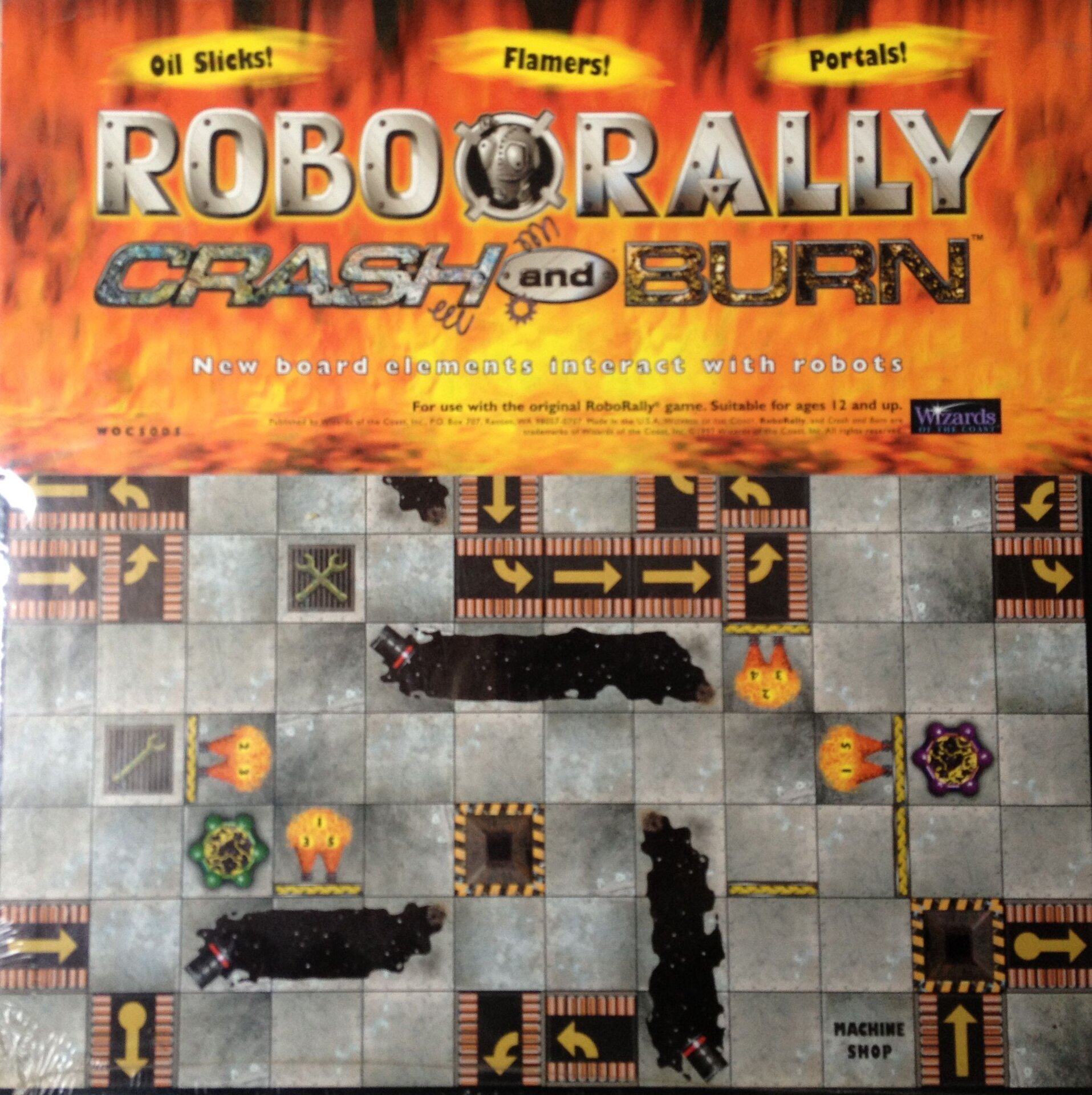
- Game Boards and Checkpoints: A race course is set up as in the base game, using boards and Checkpoints. The four new Gameboards (E, F, G, and H) can be combined with the original boards in any combination. Crash & Burn includes 8 new Checkpoints that replace those from the base game. The new Checkpoints have an illustration of a Wrench, indicating that a Damage Point can be repaired there.
- Program Cards: The cards from the base game are used.
- Option Cards: The Option Cards are shuffled and placed as a face-down deck next to the boards before the game begins. Used cards will form an open discard pile during the game. Option Cards only come into play when a player chooses one by placing their Robot on a Repair Site with two Wrenches.
- Damage Tokens: Along with those from the base game, the game now contains a total of 60 Damage Tokens.
- Player Materials: Each player receives a Robot, a Programming Aid, a Backup Copy, and a number of Life Points. The number of Life Points depends on the number of participants and the size of the race course:
- With 2 to 4 players and 1 to 4 boards, each player receives 3 Life Points.
- Each player receives an additional Life Point with 5 or more players.
- Each player receives an additional Life Point with 5 or more boards.
- For example, each player will receive 5 Life Points in a game with five players and six boards.
- Quick Reference Guides: The new Quick Reference Guides include the most important rules and information for the types of spaces on the various boards.
- Factory Element Pieces: The expansion contains 2 Blue Portals, 2 Crushers, 2 Flamethrowers, and 4 Revolving Doors. These pieces can be placed on any empty spaces on the board, and these spaces will function as if the pieces were a permanent part of the board. Factory Element Pieces can only be placed on empty spaces.
Game Flow
All rules from the base game remain unchanged unless otherwise indicated. The sequence of turns has not changed and consists of the following phases:
- Deal Program Cards
- Plan Programs
- Execute Programs
- End Phase
I. Deal Program Cards
This phase is played exactly as in the base game. All Program Cards are shuffled at the beginning of the phase, and each player receives the number of cards they are entitled to, according to the damage their Robot has sustained.
- Extra Memory (Option Card): You receive an additional Program Card at the beginning of each round. Thus, you will receive 10 Program Cards if your Robot is undamaged. Your Robot will still be destroyed as soon as it receives its 10th Damage Point.
- Recompile (Option Card): Once per round, before your Robot is programmed, you can discard your entire hand of Program Cards and draw the same number of cards from the deck as a replacement. Using this option will give you 1 Damage Point.
II. Plan Programs
This phase is played exactly as in the base game.
- Conditional Command (Option Card): When all 5 Commands have been programmed, a 6th Program Card can be placed face down on this card. You can replace any of the 5 Commands with this card during the round, but you must do so before the actual command is used (revealed). The extra Program Card is discarded at the end of the round, whether used or not.
- Flywheel (Option Card): After programming all 5 Commands, you can place one of the remaining Program Cards on the Flywheel. This card can be added to the dealt hand in the next round. An undamaged Robot player can thus choose from 10 Program Cards. There can never be more than 1 card at a time on the Flywheel.
III. Execute Programs
a) Execute Commands
Any use of the following 3 Option Cards must be announced before the execution of the relevant Program Step.
- Emergency Stop (Option Card): Instead of revealing the next Program Card, you can discard it and replace it with the top card from the draw pile. But as soon as the Emergency Stop is activated, all remaining Program Cards in the current program must be replaced in the same way. The Emergency Stop will be automatically deactivated after the fifth Program Step.
- Shield (Option Card): The Robot has been equipped with a Shield that will protect it from a single Damage Point per Program Step from a predetermined direction. Use the back of a Damage Token to mark the direction on the card. Before each new Program Step, the player can replace the token, ensuring that the token clearly indicates the protected side of the Robot. The Shield is not in use if there is no face-down Damage Token on the card.
- Turret (Option Card): The Robot has been equipped with a Turret that allows it to fire its Laser in any of the four directions. The following Option Cards can also be used in conjunction with the Turret: Turbo Blaster, High-Pressure Beam, Remote Control, Randomizer, and Tractor Beam. The back of a Damage Token is used to mark the direction of the Turret, and the player can change the position before each Program Segment. If the face-down Damage Token is not correctly placed on the card, the Turret will point forward.
The following Option Cards can be used after a specific Program Card has been revealed.
- Brakes (Option Card): Whenever you use a "MOVE 1" command, you can decide to remain in the space instead of moving forward. The Option Card does not change the Priority Number of the Program Card.
- Fourth Gear (Option Card): You can choose to move the Robot 4 spaces instead of 3 whenever you use a "MOVE 3" command. The Option Card does not change the Priority Number of the Program Card.
- Reverse Gear (Option Card): You can choose to move your Robot 1 or 2 spaces backward whenever you use a "BACK UP" command. The Option Card does not change the Priority Number of the Program Card.
- Mechanical Arm (Option Card): Whenever your Robot finishes a Program Step next to a Checkpoint, it can use the Mechanical Arm to touch that Checkpoint. This counts as if the Robot had visited that space. The Mechanical Arm cannot touch the Checkpoint from a diagonal space or through a Wall. The Checkpoint can be touched even if there is another Robot on it. The Mechanical Arm can only be used to touch "the Flag" as part of the objective; it cannot be used to repair the Robot or to acquire an Option Card. If the Mechanical Arm touches the final Checkpoint, the Robot has finished the race.
- Ramming Device (Option Card): When the Robot pushes another Robot, that Robot takes one Damage Point in addition to being pushed, even when that Robot cannot be moved. The Ram is always active.
Movements Influenced by New Spaces
- Oil Slick: If a Robot tries to end its movement on a space with an Oil Slick, it continues to slide in the direction of its movement until it leaves the Oil Slick or its movement is blocked by a Wall or another Robot that is not on an Oil Slick. Oil Slicks do not cause damage. A sliding Robot will push another Robot when both are on the same Oil Slick. Both will slide until the front Robot reaches a space without Oil or is blocked by a Wall or another Robot that is not on the Oil Slick. A Robot does not slide while in motion. Only when the movement stops (it is braking) on the Oil Slick will it start to slide. If a Robot starts its movement on an Oil Slick, it will move one space less than indicated on the Program Card. If a Robot, for example, receives the "MOVE 3" Command, it will only move 2 spaces forward. A Robot that receives the "MOVE 1" or "BACK UP" Command will remain in its space. A Robot can turn normally on an Oil Slick, as none of the Turn Commands are influenced by the Oil.
- Portal: A Robot that moves into a Portal space will continue its movement from the other Portal space. When a Robot ends its movement on a Portal, it will be transported to the Portal space of the same color. Both Portals of the same color are automatically deactivated if a Robot remains in one of the spaces. A deactivated Portal space is treated as a normal empty space.
- Flamethrower: Flamethrowers are Factory Elements. They can damage a Robot during its movement and in the Factory Elements Phase. The Flamethrower is active in the listed Program Steps. If a Robot moves into or passes through a space with an active Flamethrower, it takes 1 Damage. A Robot will also be damaged if it does not leave the space where a Flamethrower is active. A Flamethrower can damage a Robot both during its movement and during the Factory Elements Phase.
- Revolving Door: Revolving Doors only allow passage in certain Program Steps. The doors are only open in the listed Steps. Robots can move through or be pushed through the Doors when they are open, and Laser Beams can pass through the open Door. When a Revolving Door is closed, it functions as a Wall.
Activate Factory Elements
The order in which Factory Elements are activated remains the same. The only change is that Flamethrowers activate directly after Lasers.
- Crushers: A Robot is destroyed if it is on a Crusher space when it is active. A Crusher is active in the listed Program Steps. A Crusher without numbers is always active.
- Flamethrower: A Robot takes one Damage Point if it is on a Flamethrower space when it is active. This means that a Robot can take 2 Damage Points during the same Step.
Robot Laser Upgrades (Option Cards)
- Double Laser: Your Laser will now inflict 2 Damage Points on other Robots. This card can be used in combination with the Target Control and/or Power Laser cards.
- Target Control: Whenever you hit another Robot, you can choose to block a specific Program Card, or destroy an Option Card which must be discarded immediately. This card can be used in combination with the Double Laser and/or Power Laser cards.
- Power Laser: Your Laser can now fire through a Wall and through a Robot to hit its target. When the Laser fires through another Robot, it will also be damaged. This card can be used in combination with the Target Control and/or Double Laser cards.
- Rear Laser: In addition to the normal Front Laser, your Robot is now also equipped with a Rear Laser. This means your Robot can fire forward and backward at the same time, possibly damaging two different Robots in the same Step.
Additional Weapons (Option Cards)
The following Option Cards equip your Robot with additional weapons that can influence or damage other Robots. The weapons are activated in the same phase as the normal Laser, i.e., the "Factory Elements Phase," and the player can use either the normal Laser or the new weapon.
- Turbo Blaster: You have the option to use your Laser or the Turbo Blaster. The Turbo Blaster will cause 1 Damage Point in addition to pushing your target one space away from you. The Turbo Blaster can only be used 5 times. Place 5 Damage Tokens on the card and give one to the target player for each shot. Discard the Option Card when the last Damage Token is removed.
- High-Pressure Beam: You have the option to use your Laser or the High-Pressure Beam. The High-Pressure Beam will ca
Rules manual
Official PDF file
Frequently Asked Questions
Quick answers about the rules
What is the objective of RoboRally: Crash and Burn?
How do you set up RoboRally: Crash and Burn?
How do you play RoboRally: Crash and Burn?
Expansion for
Published additional content